 AiThao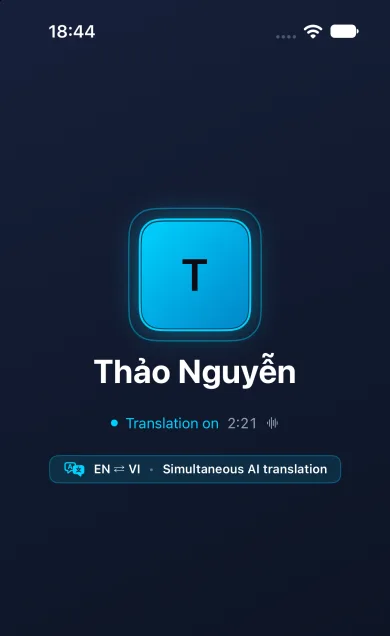
Before the call
Both people need AiThao and an internet connection. Decide which language each person will speak. A language you comfortably read may not be the language you want to hear during a conversation; AiThao has separate preferences for messages and calls.
1. Choose your call language
Open Settings → Translation → Voice in calls and choose the language you want to use for calls. Under Calls by default, select Translation. That is the default; Original starts a call with the other person’s own voice.
If a language is marked Subtitles only, plan to read the translation. Choosing that language does not add a spoken voice that the app does not support.
2. Call your contact inside AiThao
Open your conversation and start a voice or video call. Once the other person answers, check the language pair on the call screen. If their language is wrong, tap the language pair and correct They speak. Both sides using the same language means there is nothing to translate; the translation control is hidden in that case.
3. Read the cloud translation question
The first time, Enable cloud translation? explains that speech goes to a cloud service. Choose Enable translation if you agree. Translation needs agreement from both participants. While the question is waiting for an answer, you hear the original voice.
Choosing translation as your default is not a guarantee that every call is already being translated. Check the call’s status. If one participant has not agreed, the call can continue in the original voices.
4. Listen, or add subtitles
Once translation is running, the normal translated-call mode plays the translated speech. Tap Subtitles to read it too. The other person’s latest translated line is larger; your own line below it shows your words in their language. The subtitles setting also applies to later calls.
Pause between short sentences. If a name or number sounds wrong, repeat it or confirm it in a message. Subtitles help you review what was produced, but they are still an automatic translation, not an independent check of accuracy.
If translation does not start
Check the language pair first. Then read the banner: the other participant may need to enable cloud translation, translation may be unavailable, or translation minutes may have run out. Follow the stated reason instead of assuming that hearing the original voice is translated audio.
If the connection breaks up, try a steadier connection and shorter turns. Do not keep talking over the other person while waiting for a translation. The preparation and subtitles guides below explain these two cases in more detail.
Turning it off and the privacy boundary
Tap Translation to return to the original voices. To start later calls that way, choose Original under Calls by default. Turning translation off stops cloud processing; it does not revoke a call key already given to the translation worker. Do not treat the remainder of that same call as end-to-end encrypted.
For a conversation without cloud translation, start a new call with translation off and check the encryption indicator. Untranslated calls support end-to-end encryption between compatible phones. Translated calls are not end-to-end encrypted; audio reaches cloud processing, while video is not sent for translation.
Questions
Can AiThao translate a call made in the iPhone Phone app?
No. This guide is for calls inside AiThao between AiThao users.
Do I have to keep subtitles on?
For a language with spoken translation, subtitles are optional. For a subtitles-only language, turn them on to read the result.